











BC.GAME payment methods
Quick answer about deposits and withdrawals
On BC.GAME (primary domain identifier: bc.game), deposits and withdrawals are handled in the cashier inside your account area. For India-focused use, the cashier may display INR routes and local payment options depending on your account status, selected currency, and internal checks. Always rely on what is shown in your cashier at the moment you transact, because method availability can change. If a method is not visible, it is usually an eligibility, currency, or verification issue rather than a platform error.
Payment methods
BC.GAME shows deposit and withdrawal options directly in the cashier/account area. For India-focused flows, users commonly look for INR and local routing options; however, the exact list and the exact values (fees/limits/times) must be confirmed in the cashier for your specific account.
Availability can differ based on your selected currency (for example, INR), verification level, account history, and internal risk checks. Some method categories may appear only after completing certain account steps, or may be temporarily unavailable during provider maintenance. Also, deposit options and withdrawal options do not always match one-to-one, because withdrawals can be subject to routing rules, destination ownership checks, and additional reviews.
| Field | Value |
| Brand | BC.GAME |
| Operator | BlockDance B.V. |
| Company number | 158182 |
| Licensing authority | C.I.L. Curaçao Interactive Licensing N.V. |
| Licence number | 5536/JAZ |
| Licence status | stated as valid and operational (per published licence statement) |
| Licence grant date | August 23, 2021 |
| Support channels | [email protected]; online chat; Telegram; GitHub; X; Facebook; Discord; BitcoinTalk thread |
Deposit methods
In India-focused use, the cashier may show local categories such as UPI-type routes, wallet-type routes, and bank-transfer-type routes, alongside other categories (for example, crypto). Which options appear can depend on the currency you select (such as INR), your account verification state, and internal checks. If you do not see INR routes, review your currency selection and any prompts shown in your account area.
Withdrawal methods
Withdrawals are displayed in the withdrawal section of the cashier and may not mirror deposit options one-to-one. India-focused withdrawals may require additional checks or specific routing rules depending on method category and account history. If a local method is not offered for withdrawal, use the method categories visible in your cashier and follow the on-screen requirements.
Processing status and confirmations
After submitting a deposit or withdrawal, the cashier typically shows a status (such as submitted, pending, completed, rejected). India-focused INR routes may also show intermediate states depending on provider-side confirmations. If the status remains pending, use transaction history details and follow any actions requested in the cashier.
As an operational baseline:
- If the status is submitted, the request was created and is awaiting the next processing step; keep the transaction ID and timestamp.
- If the status is pending, processing is still in progress (provider-side or internal review); avoid creating duplicates and check the transaction details view for prompts.
- If the status is completed, the platform shows the transaction as finished; verify your balance or payout destination details and escalate if funds are not reflected.
- If the status is rejected, the transaction did not pass checks or validation; review the rejection note and correct details before retrying.
How deposits work
Deposits follow a standard cashier flow: select a method category, choose or confirm a currency (often INR for India-focused routes), enter an amount, and complete the confirmation step. Some local methods require a provider approval step; do not refresh or submit duplicates during this stage. Track status in transaction history and treat the cashier messages as the operational instructions.
Before you deposit
Confirm you are logged into the correct BC.GAME account and that your account profile details are consistent. India-focused INR routes may trigger verification prompts depending on risk signals, deposit pattern, or profile changes. Use a trusted device and stable network, and avoid running multiple cashier sessions in parallel.
How withdrawals work
Withdrawals typically include eligibility checks, a withdrawal request, status tracking, and possible review steps. India-focused INR withdrawals can be subject to additional verification or routing requirements, especially when the payout destination is new or recently changed. If your withdrawal is marked pending, keep monitoring the transaction entry rather than submitting repeated requests.
Withdrawals can also be affected by practical controls such as destination ownership checks (to confirm the payout destination belongs to you), consistency checks between your profile details and payout details, and security triggers (for example, recent password changes or security-setting changes). When a withdrawal is in progress, keep your account details stable and do not change payout details unless the cashier explicitly instructs you to resubmit.
Common reasons withdrawals can be delayed
Delays often happen due to verification requests, risk checks, or mismatched destination details. If a promotion affects your balance, withdrawals may be restricted until conditions are satisfied or reviewed. India-focused local routes can also require provider-side processing steps that keep the transaction in pending status.
Additional common delay triggers include name or identifier mismatches, newly added payout destinations, recent security changes to the account, and repeated payout attempts while an earlier request is still pending. If you see a pending review status, treat it as an instruction to wait for the next update and to respond to any verification prompt rather than retrying.
Step-by-step
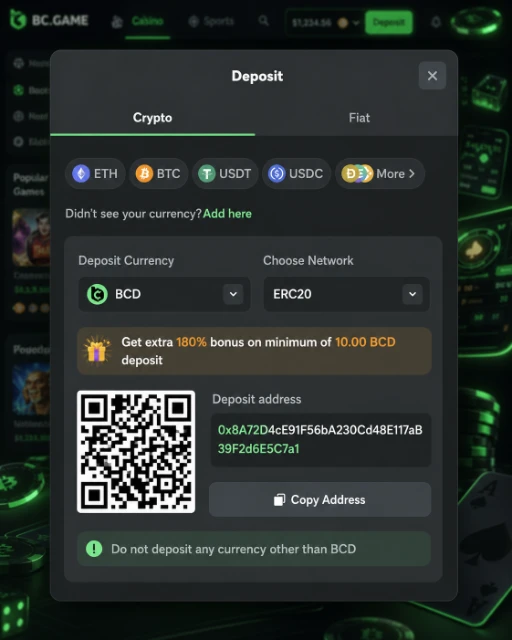
Make a deposit step by step
- Step 1
Sign in to your BC.GAME account and open the cashier. Confirm you are operating in the intended currency context (for India-focused routes, this is often INR if shown). If the cashier displays notices, read them before selecting a method.
- Step 2
Choose a deposit method category from the list shown in the cashier. For India-focused users, the cashier may show local categories such as UPI-type or wallet-type routes when INR is selected. Only proceed with methods that are currently visible to your account.
- Step 3
Enter the deposit amount and confirm the currency displayed next to the amount field. Do not rely on assumptions about minimums or maximums; if limits are shown, treat them as binding for that session. If limits are not shown, open method details if available.
- Step 4
Provide the details required for the selected method category. This can include an account identifier, a wallet identifier, or a provider selection step depending on the method. Enter details exactly as required to avoid validation failures.
- Step 5
Confirm the deposit and complete any provider approval step that appears. Keep a single active tab and do not refresh during authorization. If you are redirected back to the cashier, wait for the status to update.
- Step 6
Open transaction history and check the deposit entry status. If it is pending, follow any action prompts shown in the transaction details. Avoid creating duplicate deposits while the first attempt remains pending.
- Step 7
Verify that your balance reflects the completed deposit. If the deposit shows completed but your balance does not update, note the transaction ID, timestamp, and method category. Contact support with those details if the mismatch persists.
Request a withdrawal step by step
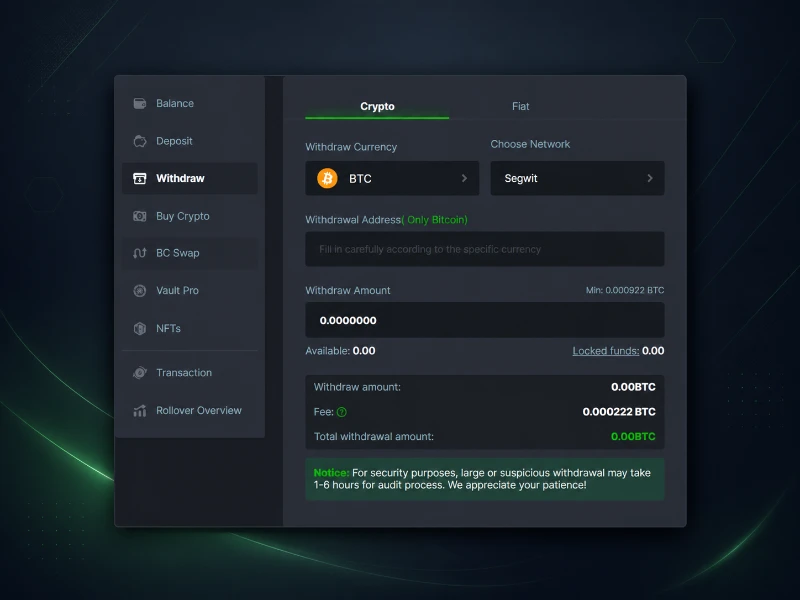
Step 1 → Log in to BC.GAME and open the cashier, then go to withdrawals. Confirm which balance you are withdrawing from and ensure it is the correct currency context for your plan (for India-focused use, INR routes may appear when supported). Read any withdrawal notices in the cashier before proceeding.
Step 2 → Review the withdrawal method categories available to your account. For India-focused routes, the cashier may show local categories when eligible; if not, use the categories actually offered. Do not assume that a deposit method is automatically available for withdrawal.
Step 3 → Enter the withdrawal amount and confirm the currency shown. If the cashier displays a minimum, maximum, or net amount, treat those values as the operational reference. If you cannot see limits, open method details if available.
Step 4 → Enter payout destination details with extra care. For local routes, this may involve identifiers associated with the selected method category; for crypto, this involves an address and possibly a network selection. Any mismatch can lead to rejection or delay.
Step 5 → Review the withdrawal summary and confirm method category, amount, and destination details. If the cashier warns about verification or restrictions, resolve them before submitting where possible. Do not submit multiple requests to “force” processing.
Step 6 → Submit the withdrawal and record the transaction reference and timestamp. Keep a screenshot of the confirmation screen if your interface allows it. This helps if you need to escalate.
Step 7 → Monitor the withdrawal status in transaction history. If the transaction shows pending review, wait for the next status update and check whether the cashier requests additional steps. Avoid changing account details while a review is in progress.
Step 8 → Complete any verification requests promptly if they appear. Upload clear, current documents and ensure the information matches your account profile. If the request is unclear, contact support with the transaction reference and the exact prompt shown.
Step 9 → Confirm completion when the status changes to completed. If the payout destination does not reflect the funds after completion, verify that the destination details were correct and then contact support with the full transaction record.
Fees, limits, and processing times
Fees, limits, and processing times depend on the method category, your account status, currency routing (such as INR), and whether a transaction is queued for review. BC.GAME may display these values during the cashier confirmation flow. Treat the cashier as the source of truth for your account.
For India-focused INR routes, publicly discussed examples sometimes describe specific fees/limits/times for local categories. Use such figures only as indicative and verify the current values in your BC.GAME cashier before you confirm a deposit or withdrawal.
Fees
Fees may be shown in the cashier confirmation step or within method details. Some publicly discussed examples for India-focused local withdrawal routes describe an indicative pattern around 5% + ₹6 for certain flows. Verify whether a fee applies and what the exact fee is in your cashier before you confirm the transaction.
Operationally, distinguish:
- Platform fee (shown by the cashier, if applied by the platform).
- Provider fee (applied by the payment provider, sometimes reflected in the final credited amount).
- Network fee (relevant to crypto transactions).
- Conversion/FX impact (if routing involves currency conversion or rate spreads; shown where applicable in the cashier flow).
Limits
Limits are typically displayed in the cashier at the amount entry step. For India-focused INR routes, publicly discussed examples sometimes describe indicative minimums like ₹113 for certain local categories and ₹524 for certain bank-transfer-type categories, with indicative maximums like ₹20,000 (some local flows) and ₹50,000 (some bank-transfer/IMPS-type flows). Verify the exact minimum and maximum for your method in the cashier before you proceed.
If you cannot see limits before submission, check the method details panel (if available) and the confirmation screen summary before you authorize the payment.
Processing times
Processing times can vary based on method category and review state. Publicly discussed examples for India-focused INR routes sometimes mention indicative windows such as up to 60 minutes (some local flows) and 1–2 hours (some wallet/bank-transfer-type flows). Verify the current estimate in your cashier and use transaction history as your operational reference.
Where to check timing operationally:
- Confirmation screen (sometimes shows an estimate or processing note).
- Transaction history entry (shows the current status and whether a review is active).
- Transaction details view (may show prompts or next steps for pending states).
Required table
| Method category | Deposits availability | Withdrawals availability | Fees | Typical checks | Notes |
| Bank card | Shown in cashier if eligible | Shown in cashier if eligible | Shown at confirmation if applicable | Risk checks, possible verification triggers | Availability can depend on INR routing and account checks; verify in cashier |
| Bank transfer | Shown in cashier if eligible | Shown in cashier if eligible | Shown at confirmation if applicable | Name matching, additional review possible | Publicly discussed examples sometimes cite min ₹524, max ₹50,000, time 1–2 hours; verify in cashier |
| E-wallet | Shown in cashier if eligible | Shown in cashier if eligible | Shown at confirmation if applicable | Account ownership checks, risk screening | Publicly discussed examples sometimes cite min ₹113, max ₹20,000, time 1–2 hours; verify in cashier |
| Crypto | Shown in cashier if eligible | Shown in cashier if eligible | Shown at confirmation if applicable | Address validation, confirmations, risk checks | Network fees and confirmations vary; verify in cashier and transaction details |
| Mobile payment | Shown in cashier if eligible | Shown in cashier if eligible | Shown at confirmation if applicable | Provider approval steps, risk checks | Publicly discussed examples sometimes cite min ₹113, max ₹20,000, time up to 60 minutes; verify in cashier |
| Voucher or prepaid | Shown in cashier if eligible | Shown in cashier if eligible | Shown at confirmation if applicable | Code validation, fraud screening | Verify current rules and limits in cashier before use |
| Local transfer | Shown in cashier if eligible | Shown in cashier if eligible | Shown at confirmation if applicable | Eligibility rules, compliance checks | Publicly discussed examples sometimes cite min ₹524, max ₹50,000, time 1–2 hours; verify in cashier |
| Instant bank pay | Shown in cashier if eligible | Shown in cashier if eligible | Shown at confirmation if applicable | Bank-side authorization, risk checks | Verify supported INR routes and method instructions in cashier |
| Cash alternative | Shown in cashier if eligible | Shown in cashier if eligible | Shown at confirmation if applicable | Identity checks, transaction monitoring | Verify the exact steps and checks in cashier |
| Stable-value digital asset | Shown in cashier if eligible | Shown in cashier if eligible | Shown at confirmation if applicable | Network confirmations, address checks | Confirm network selection and confirmations in transaction details |
| Manual review payout | May be applied by internal routing | May be applied by internal routing | Shown at confirmation if applicable | Enhanced verification, risk review | Reviews can affect timing; track status in transaction history |
| Alternative payment method | Shown in cashier if eligible | Shown in cashier if eligible | Shown at confirmation if applicable | Varies by provider and account status | Use cashier to confirm availability, limits, and current requirements |
Troubleshooting
Deposit failed
- Why: Payment authorization didn’t finish, provider declined it, or method isn’t currently allowed for your account.
- Fix: Double-check currency and method in cashier, re-enter details carefully. Try again using one tab and stable connection. Still failing? Switch to a different method shown in the cashier and save transaction reference for support.
Deposit pending
- Why: Deposit waiting for provider confirmation or system status sync.
- Fix: Check transaction history and see if action is needed. Don’t submit another deposit while the first one’s pending – prevents duplicates. Status not changing? Write down transaction ID, timestamp, payment method and contact support.
Withdrawal pending
- Why: Withdrawal in queue for review or waiting on payment provider processing.
- Fix: Look at transaction details for verification requests or missing info. Don’t make new withdrawals while one’s pending – complicates things. Status shows completed but money not there? Grab transaction details and contact support with destination info and timestamps.
Withdrawal rejected
- Likely cause: Destination details failed validation, eligibility rules were not met, or additional checks were required.
- Fix: Review the rejection note in transaction history and compare the destination details to the required format. Confirm you selected a withdrawal method category that is currently available in your cashier. If the reason is unclear, contact support with the transaction ID and the exact rejection text shown.
Incorrect wallet or address details
- Likely cause: The destination identifier was entered incorrectly or does not match the required network/account format.
- Fix: Copy destination details from a trusted source rather than retyping. Confirm any network selection or method subtype shown in the cashier matches your destination. If you already submitted the request, use cancellation/correction controls if available, or contact support with the transaction reference.
Verification requested during payout
- Likely cause: The platform triggered identity or security checks before processing the withdrawal.
- Fix: Open the verification area and follow the exact document instructions. Ensure images are clear, current, and consistent with your account profile. If you already provided documents but a new request appeared, submit what is requested and ask support to clarify the reason linked to the transaction.
Cashback or bonus restriction affecting withdrawal
- Likely cause: Promotional conditions may restrict withdrawals until rules are met or the balance is reviewed.
- Fix: Check your active promotions and any conditions shown in the account area. Review whether the cashier displays a restriction notice at withdrawal confirmation. If unclear, contact support with the promotion name, timestamps, and the withdrawal transaction reference.
Chargeback or dispute guidance
- Likely cause: A payment dispute can interrupt processing and trigger additional checks.
- Fix: Document transaction details first and attempt resolution using the platform’s support flow. If you contact your payment provider, keep communications consistent with your transaction record and avoid submitting conflicting claims. For account-specific handling, rely on the terms shown in your account area and support guidance.
Currency mismatch at checkout
- Likely cause: The selected currency (such as INR) does not match the method’s supported routing or your current balance context.
- Fix: Return to the cashier and confirm the currency selection and the balance you are funding from. If INR routes are not displayed, try switching the method category or reviewing account prompts that may gate local options. If the mismatch persists, contact support with screenshots of the cashier step and the selected settings.
Duplicate transaction attempts
- Likely cause: Multiple confirmations were triggered due to refreshing, multiple tabs, or repeated clicks during authorization.
- Fix: Check transaction history for duplicates before trying again. If duplicates exist, do not continue retrying; record all transaction references and contact support with an accurate timeline. Use a single tab and wait for a final status update for the original attempt.
Amount debited but balance not credited
- Likely cause: The provider-side transaction completed, but the platform balance update is delayed due to synchronization or an intermediate confirmation step.
- Fix: Check the deposit entry in transaction history and open the transaction details view for any pending confirmations. Do not create duplicate deposits until the first entry reaches a final status. If the debit is confirmed externally but the cashier remains pending or the balance does not update after completion, escalate with transaction ID, timestamp, method category, currency, and screenshots.
Withdrawal completed but funds not received
- Likely cause: The transaction is marked completed in the cashier, but the receiving side has not posted the funds yet due to provider-side processing, routing delays, or destination detail issues that do not always surface as a rejection.
- Fix: Open the completed withdrawal entry in transaction history and verify the destination category and key identifiers match what you intended. Check whether the transaction details view shows any reference that the receiving side can use, and confirm you selected the correct route (for example, the correct network for crypto). If funds still do not appear, escalate with the withdrawal transaction ID, timestamps, method category, currency context, and screenshots of the completed status and destination details.
Security and responsible use
Make unique, secure credentials for BC.GAME, don’t share authentication stuff. Two-factor may be available – look in account settings. Update device and browser regularly, skip unknown extensions that interfere with transactions. Gambling hard to manage? Use account controls and find outside support services.
Support and escalation
Before contacting support, prepare the transaction ID, timestamps, method category, currency context (such as INR if applicable), and the exact error or status text shown in transaction history. Screenshots of the cashier step and transaction status can help, but avoid exposing sensitive credentials. Include the email linked to your BC.GAME account to speed up identification.
For faster resolution, provide:
- The transaction ID/reference and the exact status label shown.
- A timeline (when you initiated the transaction and when the status last changed).
- The method category (for example, mobile payment, local transfer, bank transfer, crypto) and the currency context (such as INR).
- Destination details category (without exposing sensitive full identifiers in plain text, if possible).
- Any on-screen prompt text from the cashier or transaction details view.
Support channels include online chat and [email protected], plus the official social/community channels listed in the brand passport table above. If a specific channel is not available in your account interface, use the channels currently displayed in your account area.
BC.GAME payment methods FAQ
You can see available deposit and withdrawal methods in the cashier inside your account area. The list shown there reflects what is currently enabled for your account and currency selection. For India-focused use, INR routes may appear when eligible.
Methods can be unavailable due to account status, currency selection, verification state, or internal checks. Some methods may only be available for deposits or only for withdrawals. Always rely on the method categories currently visible in your cashier.
Fees depend on method category, currency routing, and account checks. If fees apply, they are typically shown during confirmation or in method details. Verify the exact fee in the cashier before completing a transaction.
Withdrawal times vary by method category and whether a review is required. The cashier may show an estimate, and transaction history shows the current status. Verify the time expectations in your cashier and monitor transaction history for updates.
Typical causes: wrong destination info, method not eligible, or verification missing. Transaction records usually have a short rejection note or status message. Not clear what happened? Contact support with transaction ID and exact rejection text displayed.
Could require identity and account-ownership documents based on your account’s specific prompts. Follow upload directions exactly as displayed in the verification section. Unsure about requirements? Get in touch with support, provide transaction reference and verification prompt shown.
Look at transaction history and see if there’s an action required message in the cashier. Don’t submit another deposit while one’s still pending. Status not updating? Note transaction ID, timestamp, payment method and contact support.
Use support options in your account and give them transaction ID, timestamps, payment method, screenshots of status if you can. Include currency like INR and the exact error message you saw. Can’t reach chat? Email [email protected].
Payment routing rules sometimes limit withdrawals to specific methods based on how you deposited and compliance requirements. The cashier displays what’s currently available for your account. Don’t see your preferred cashout option? Use what’s available or contact support with transaction details.
If the cashier lets you cancel or edit, do it right away and resubmit with correct info. Can’t edit after submission? Contact support with transaction reference and correct destination details. Don’t submit more withdrawals until you know what’s happening with the first one.