






BC.GAME Mobile Access in India
In India, people usually access BC.GAME through a mobile browser with a home-screen shortcut for quick access. Can also add it as a web app to home screen, or use Android APK if downloaded from the official BC.GAME source. Works best with updated browser, saved site data like cache/cookies, and solid mobile connection.
| Entity | Value |
| Brand | BC.GAME |
| Operator | Twocent Technology Limited |
| Company number | 000041939 |
| Licensing authority | Government of the Autonomous Island of Anjouan, Union of Comoros |
| Licence number | ALSI-202410011-FI1 |
| Licence status | valid |
| Licence grant date | 2024-10-02 |
| Support channels | live chat; [email protected]; Telegram @bcgamewin; X @BCGameOfficial; GitHub bcgame-project; BitcoinTalk — official project thread |
Ways to access from a phone
Mobile browser
A mobile browser is the baseline way to sign in, browse games, and manage account actions (profile, security, transactions). It works on most devices and does not require installation.
If access is unstable, clearing cache/cookies, disabling blockers, and checking the network (mobile data/wi-fi) are the most common fixes. In India, public wi-fi and congested networks can also lead to session drops and timeouts.
PWA
BC.GAME can be used as a web app via adding it to the home screen. On some devices you may see an Install prompt, but the universal path is Add to Home Screen from the browser menu.
Practical signs that the web app is running as intended:
- a dedicated home-screen icon and app-like launch
- fewer browser UI elements (for example, no prominent address bar within the launch window)
- more predictable resume after switching apps (with stable connectivity and without clearing cookies)
Limitations depend on the device and browser:
- clearing cookies/site data typically forces a fresh sign-in
- power-saving modes and background restrictions can affect notifications and session stability
- on some devices, installation prompts may not appear; in that case, use a standard browser shortcut
App
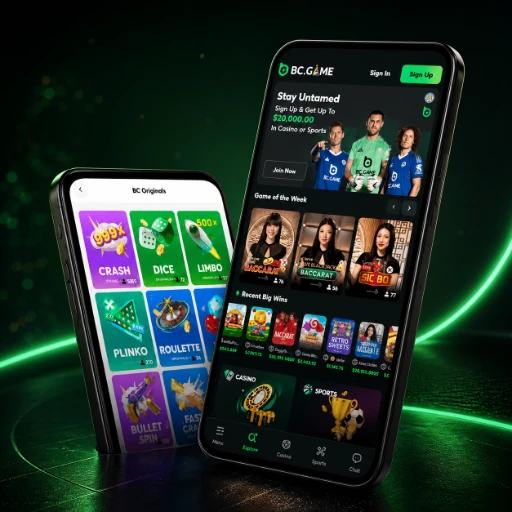
For BC.GAME, an Android installation path via APK is described, provided the APK is obtained from the brand’s official source. For iOS, the primary described path is a web app via Add to Home Screen, not a mandatory app-store installation.
Safety checklist for APK installation and verification:
- use only the brand’s official source and confirmed support channels for installation instructions
- avoid APKs delivered via ads, forwarded messages, or third-party file directories
- watch the install flow for red flags: unexpected redirects, bundled “installers,” or prompts to install multiple packages
- review permissions and avoid disproportionate requests (SMS access, overlay permissions, device admin control) if not required for sign-in
- when in doubt, use browser access and contact support
Step-by-step use on mobile
- Step 1: Open the site and sign in
Launch BC.GAME on mobile browser and sign into account. Make sure the interface loads completely without unexpected pop-ups or display shifts. If language or region selector exists, pick India.
- Step 2: Recover access if you cannot sign in
Password not working or lost access? Use the normal recovery option in the sign-in screen. Skip third-party “quick recovery” forms and bots. Check exact recovery steps in your account and official terms.
- Step 3: Set up security
Check security settings in your profile: password updates, active sessions/devices, linked verification options. Two-factor available? Turn it on. Confirm the method and setup inside your account.
- Step 4: Check device and browser readiness
Update browser and OS, kill any weird extensions or overlays, check notification and pop-up permissions. Make sure phone date/time are right – messed up clock breaks logins and codes.
- Step 5: Check verification status
Open the profile section related to identity checks/verification and review your status. Requirements can vary by account and region, so follow what your account shows. Before uploading any materials, ensure images are clear (readable, no glare, full frame) and that the browser has correct camera/files permissions.
- Step 6: Make a deposit
Access the cashier and choose the top-up option. Before proceeding, check limits, fees, any confirmation requirements shown. Mobile users verify: network connection solid, amount/currency/info matches screen, blockers off, don’t jump between networks or tabs.
- Step 7: Request a withdrawal
In the withdrawal section, look at verification requirements and conditions for your method. Before submitting, check verification status and any limits/restrictions shown. Use stable connection, skip public wi-fi, don’t switch networks during confirmation – prevents errors or duplicate requests.
- Step 8: Configure notifications
See notification settings inside account and browser’s permission controls. Don’t want notifications? Kill them at browser/OS level to avoid phishing. Do I need them for login/transaction alerts? Make sure the battery saver isn’t blocking.
- Step 9: Contact support
Use only official BC.GAME support channels. Confirmed channels include: live chat on the site, email [email protected], Telegram @bcgamewin, X @BCGameOfficial, GitHub bcgame-project, and an official BitcoinTalk thread.
Installation and adding to the home screen
How to add the site to the home screen
- Open the site in a mobile browser and wait for a full load.
- Open the browser menu (often a share button or settings menu).
- Choose Add to Home Screen (or the equivalent option).
- Rename the shortcut if needed and confirm.
- Launch from the home screen; if issues appear, return to the browser, sign in normally, and clear cache/cookies if needed.
How PWA works
For BC.GAME, the web app works by adding it to your home screen. It’s web-based – launches from its own icon, opens in an app-style window, updates like a regular website. Some phones only show Add to Home Screen instead of Install – that works fine too. On mobile, battery saver and background limits can mess with notifications and session stability. Is the web app acting weird? Just use a regular browser and clear cache/cookies.
Table of access methods and checks
| Access method | Requirements | Pros | Cons | Typical issues |
| Browser (normal mode) | Up-to-date browser, cache/cookies enabled | Maximum compatibility | Cache can break sessions over time | White screen, login loop |
| Browser (alternative engine) | Another browser app | Quick diagnosis (browser vs service) | Different autofill/settings | UI rendering issues |
| Home-screen shortcut | Add to Home Screen feature | One-tap launch | Still web-based | Shortcut opens a stale session |
| Web app via Add to Home Screen | Browser supports the feature | App-like icon and access | Behavior varies by OS/browser | No Install prompt, power-saver crashes |
| Android APK from official source | APK install allowed + permissions | Alternative access format | Risk if source is unofficial | Fake builds, excessive permissions |
| iOS web app instead of store | Safari + Add to Home Screen | No store dependency | Depends on iOS/browser settings | Background limitations |
| Incognito/Private mode | Private browsing | Clean session (no old cookies) | Sign-in not retained | Repeated logins |
| Clear cache/cookies | Browser site-data controls | Fixes many “stuck” errors | Logs you out | Preferences reset |
| Ad/script blocker enabled | Blocker active | More privacy | Can break login/cashier | Buttons not working, pop-ups blocked |
| Data/Power saver modes | Saver modes enabled | Longer battery | Background/JS can be limited | Codes delayed, pages hang |
| Switch wi-fi ↔ mobile data | Alternative network available | Bypasses local ISP issues | Instability during handover | Timeouts, load errors |
| Public wi-fi captive portal | Wi-fi requires sign-in | Quick connectivity | Unstable + privacy risk | Site won’t load until portal sign-in |
| 4G/5G handover during actions | Stable signal preferred | Higher peak speed | Sessions may drop mid-flow | Confirmation errors, logout |
| VPN or proxy | VPN/Proxy enabled | Route changes | Can trigger checks and drops | Logouts, captcha, confirmation errors |
| DNS/ISP filtering | Network DNS settings | Can restore domain access | Requires care | Domain not resolving errors |
| OS/browser updates | Storage + battery | Compatibility and security | May require restart | Older versions break UI |
Common mobile issues and fixes
The site does not open on the phone
- Cause: network restrictions, DNS/ISP filtering, transient outages, carrier routing behavior.
- Fix:
- Switch networks (wi-fi ↔ mobile data) and disable data saver temporarily.
- Restart the browser and try another browser to isolate the cause.
- Review DNS settings (if applicable) and retry.
- If it happens only on one network/location, use a more stable connection and avoid public wi-fi for sign-in and account actions.
White screen or endless loading
- Cause: corrupted cache, blocker conflict, outdated browser.
- Fix:
- Clear site cache and cookies.
- Disable ad/script blockers for the site.
- Update the browser and restart the device.
Cannot sign in even with the correct password
- Cause: stuck session, incorrect device time, additional security checks.
- Fix:
- Ensure automatic date/time is enabled.
- Sign out and back in; try Incognito/Private mode.
- Change the password and review active sessions if available.
Captcha or security checks fail
- Cause: blockers, unstable network, strict privacy settings, limited scripts.
- Fix:
- Disable blockers and strict tracking prevention for the site.
- Clear cache/cookies and restart the browser.
- Switch to a more stable network and retry.
Confirmation code does not arrive
- Cause: notification/background restrictions, delivery channel issues, spam filtering.
- Fix:
- Check notification permissions and power-saver settings.
- Check spam/promo folders if applicable.
- Request a new code and use another available verification method if your account offers it.
Cashier does not open or deposit/withdraw buttons do not work
- Cause: scripts blocked, stale cache, temporary method unavailability.
- Fix:
- Disable blockers/anti-tracking for the site.
- Clear cache/cookies and sign in again.
- Re-check available methods, limits, and requirements shown in the cashier and account rules.
Confirmation windows do not appear or freeze
- Cause: pop-up blocking, gesture/overlay conflicts, background restrictions.
- Fix:
- Allow pop-ups for the site and disable blockers.
- Close overlays (floating buttons, screen recorders, messenger bubbles).
- Retry in another browser or after a device restart.
Error uploading documents or selfie for verification
- Cause: unsupported file type/size, weak network, camera/files permission denied.
- Fix:
- Allow camera/files access for the browser.
- Re-capture images in good light, without filters or cropping.
- Switch to a stable network and retry.
Buttons are not clickable or a form won’t submit
- Cause: page zoom, gesture conflicts, scripts blocked, overlays.
- Fix:
- Reset page zoom to default and reload.
- Disable blockers/strict privacy for the site.
- Close overlays and try another browser.
APK download or installation fails
- Cause: download restrictions, low storage, “unknown sources” blocked, unofficial source.
- Fix:
- Free storage and retry on a stable network.
- Check app-install settings (permission to install from files) and retry.
- Confirm the APK comes from the brand’s official source; if unsure, avoid installing and use the browser.
Install/Add to Home Screen does not appear
- Cause: browser/settings differences; features can be hidden by privacy or data-saver modes.
- Fix:
- Update the browser and disable data saver temporarily.
- Use Add to Home Screen from the browser menu.
- If the web app is unstable, use standard browser access.
Frequent logouts or “session expired”
- Cause: auto-clearing cookies, Incognito mode, network switching, VPN/Proxy, unstable mobile networks.
- Fix:
- Disable auto-clearing cookies and exit Incognito.
- Use the most stable network during actions and avoid 4G/5G handovers mid-confirmation.
- Disable VPN/Proxy during sign-in and confirmations if it causes extra checks or drops.
Suspected phishing page or UI spoofing
- Cause: non-official sources, malicious extensions/overlays.
- Fix:
- Close tabs and remove suspicious extensions/apps.
- Open the service by typing the domain identifier manually (Primary domain identifier: bc.game).
- Change your password, review account security, and contact support via official channels if needed.
Mobile security
Operator and license info plus support channels are in the Brand passport section.
Primary mobile threats: phishing scams, session hijacking, information leaks through overlay apps and unsafe software. Stay current with OS/browser updates, verify app permissions periodically, lock devices using PIN or fingerprint. For Android APK, obtain only from official BC.GAME source – ignore ads and forwarded installation files.
How to distinguish an official sign-in on mobile:
- type the domain identifier manually and avoid “mirror” links from ads or forwarded messages
- watch for unexpected redirects and urgent pop-ups asking for credentials
- do not enter passwords or verification codes inside pages opened from messenger links; open sign-in directly in your browser
- if unsure, use live chat and confirmed support channels to validate instructions
For account-level protection, enable 2FA if available in your account, and review active sessions/devices if that option is provided.
Responsible gaming
Mobile makes impulsive play easier since it’s always there and you can switch between stuff instantly. Use responsible tools in your account like limits, timeouts, self-exclusion – set them up before problems start, not after.
Things that help on mobile:
- decide session times and take breaks instead of playing nonstop in background
- skip playing while commuting, late at night, or when distracted, especially on shaky connections
- keep notifications to security stuff only – turn off promo push alerts if they trigger impulse plays
- losing control? use pause/self-exclusion in account and message support for available options
BC.GAME Mobile Access FAQ
Most commonly it is a network/DNS/ISP filtering issue or a browser cache problem. Switch networks and clear cache/cookies. In India, carrier routing and congested networks can also cause timeouts.
Open your browser settings, find privacy or site data, and clear cache and cookies for BC.GAME. Restart the browser and sign in again. This will reset your login session.
Yes. Typical access is via a mobile browser or a web app added via Add to Home Screen. On Android, an APK option may be used if installed from the brand’s official source.
A PWA or web app is a web-based format that can be added as a home-screen icon and launched in an app-like window. It is not the same as a native store app and generally updates like a website.
This depends on the browser and settings, and how the web app is presented on your device. Update the browser and use Add to Home Screen from the menu. If installation is not offered, use standard browser access.
Use the official recovery flow in the sign-in interface and follow the requirements shown for your account. Avoid third-party recovery forms and bots. Confirm the exact steps inside your account and official rules.
Disable Incognito and auto-clearing cookies, then sign in again after clearing cache/cookies. Avoid switching networks during actions. If you use a VPN or proxy, try disabling it during sign-in and confirmations.
Some devices and browsers do not offer installation prompts or hide them behind privacy settings. Update the browser, disable data saver temporarily, and look for Add to Home Screen. If it is not available, use standard browser access.
Yes. Use Add to Home Screen in your browser menu to create a shortcut icon. If the interface becomes unstable, return to normal browser access and clear cache/cookies if needed.
Confirmed BC.GAME support channels include live chat on the site, [email protected], Telegram @bcgamewin, X @BCGameOfficial, GitHub bcgame-project, and an official BitcoinTalk thread.